Have you ever needed to download a massive file from a URL but didn’t want to waste your local internet quota or wait hours for it to finish? Or maybe you wanted to backup a website directly into a ZIP file inside your cloud storage?
If you try to do this natively, Google Drive doesn’t give you a terminal to run commands like wget. However, there is a brilliant, 100% free workaround using Google Colab that lets you leverage Google’s cloud servers to download and compress files at lightning-fast speeds.
In this guide, we will show you how to wget any URL directly to your Google Drive and how to zip the file correctly.
The Secret Ingredient: Google Colab
Google Colab is a cloud-based Python environment provided by Google. Because it runs on Google’s infrastructure, it has direct, high-speed access to Google Drive. We can use it to execute Linux commands like wget and zip.
Here is the step-by-step guide to setting it up.
Step 1: Open a New Google Colab Notebook
- Go to google.com and log in with your Google account.
- Click on New Notebook.
Step 2: Mount Your Google Drive
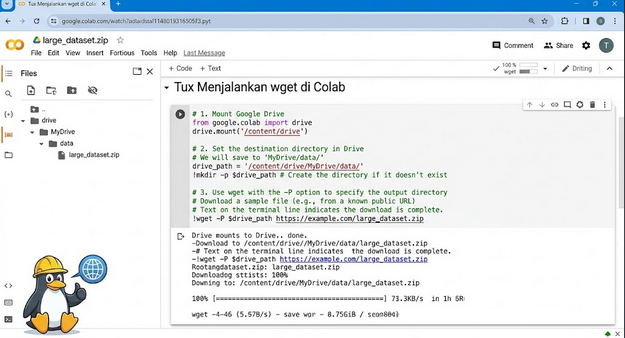
Before downloading anything, you need to give Colab permission to access your storage. Paste the following code into the first cell and click the Play button (or press Shift + Enter):
from google.colab import drive
drive.mount('/content/drive')
A pop-up will appear. Follow the prompts to grant access to your Google Drive.
Step 3: Navigate to Your Drive Folder
By default, Colab operates in a temporary cloud directory. To ensure your files save permanently to your Drive, change the directory by running this command:
%cd /content/drive/MyDrive/
How to Wget and Zip the Files Correctly
If you try to run !wget "URL" | zip, it will fail because the standard zip command doesn’t accept direct data streams without specific arguments. Here are the two best ways to do it properly.
Method 1: Download First, Zip Later (Recommended & Safest)
This method downloads the original file to your Drive first, compresses it into a ZIP file, and then cleans up the unzipped original to save space.
Run this command in a new cell:
# 1. Download the file (e.g., index.html from example.com)
!wget "https://example.com"

# 2. Compress the downloaded file into a ZIP archive named 'archive.zip'
!zip archive.zip index.html

# 3. Delete the original file to keep your Drive clean
!rm index.html
Method 2: Stream and Zip Instantly (Advanced)
If you don’t want the raw file to touch your storage even for a second, you can pipe the data stream directly into a compressed format.
Option A: Using Gzip (Easiest for single files)
!wget -O- "https://example.com" | gzip > website.html.gz
How it works: The -O- flag tells wget to output the data to the terminal stream instead of saving it, which gzip immediately catches and compresses into a .gz file.
Option B: Forcing a standard .zip format
!wget -O- "https://example.com" | zip archive.zip -
Note: The trailing dash - tells the zip command to read from the input stream.
Conclusion
By combining Google Colab with Google Drive, you essentially get a powerful, free remote downloader. You can save gigabytes of data in a matter of seconds without touching your local bandwidth.
Happy downloading!